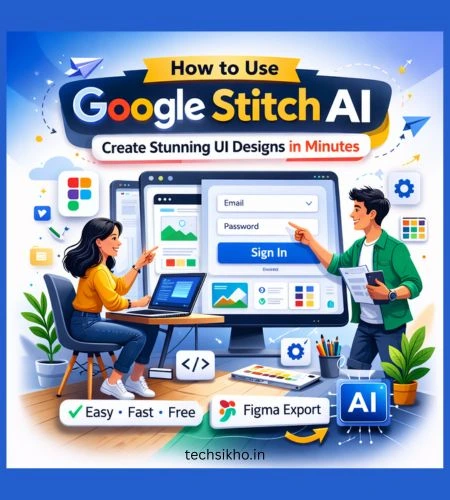

Designing a new web or mobile app from scratch takes a long time. But what if you could type in a simple idea and instantly arrive at a fully designed layout screen? Google Labs is trying to achieve exactly that. If you’re a designer, developer, or founder who wants to build digital products quickly, learning how to use Google Stitch AI is a vital skill these days.
In this article, I will explain step-by-step what Google Stitch AI is and how it actually works. We’ll break down its core features, explain how to use the different Gemini AI models (such as 3 Flash and 3 Pro), and show how you can export your designs to real code or Figma files. At the end of the article, I’ll also provide my personal review as a UI/UX expert, so you can get an honest idea of what this tool can do and where it falls short.
What is Google Stitch AI?
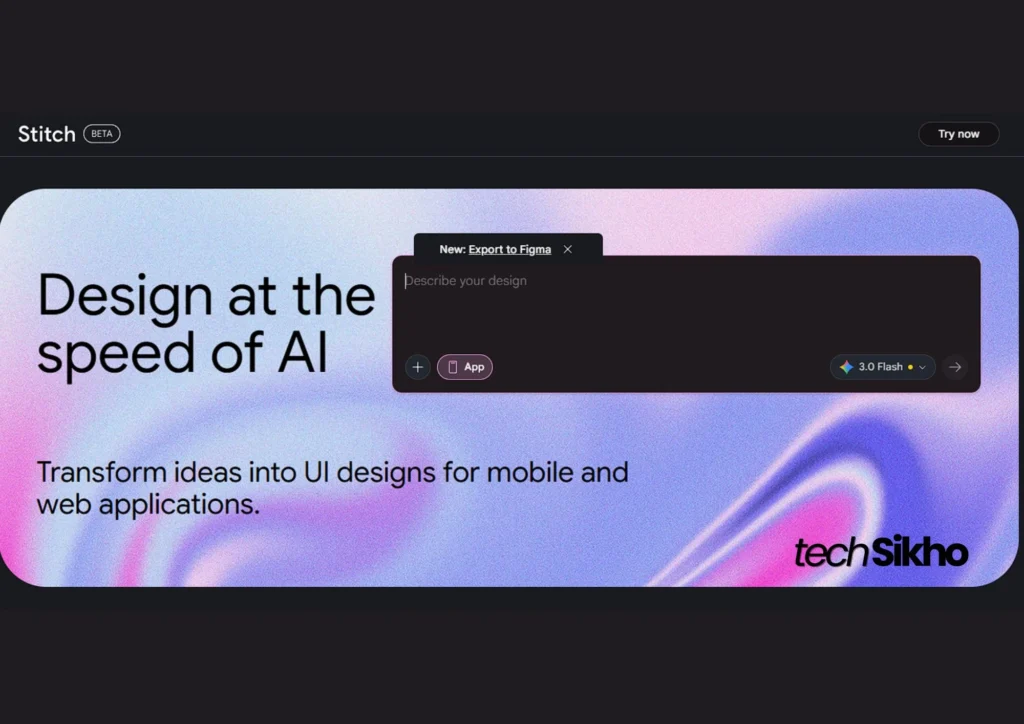
Google Stitch AI is an experimental, generative artificial intelligence tool developed by Google Labs. The primary purpose of this tool is to help you create prototypes of User Interfaces (UI) and User Experiences (UX) at lightning speed. The official motto of this tool is “Design at the speed of AI.”
In simple words, Google Stitch AI is a web-based platform where you can type a normal text description or upload a reference picture, just like ChatGPT. The system reads your instructions and instantly generates a functional and stylish mock-up screen of an app or website.
Why is Google Stitch AI different from a typical image generator?
Because it runs Google’s highly advanced Gemini model, which is specifically trained on design rules. So, it doesn’t just draw a beautiful photo; it also generates its actual HTML structure and styling code in the background. Because of this, you can export this layout directly to your professional design software (like Figma) or coding environment and completely skip the boring process of manual wireframing.
Key Features of the Google Stitch AI Tool
This tool is currently in beta, yet its power is surprisingly high. When you open its workspace, you’ll find several advanced features to simplify the design process:
- App or Web Toggles: There are buttons at the top of the screen to select either App or Web. This tells the AI in advance which type of device to generate the layout for.
- Multiple Gen-AI Models: A prompt box gives you the freedom to choose the AI engine:
- Flash: Default choice. Gemini 3.0 uses Flash to create high-quality HTML designs. It’s designed primarily for pure speed.
- Thinking with 3 Pro: This model takes a little extra time to load but prioritizes maximum quality and deep reasoning for complex prompts using Gemini 3 Pro.
- Redesign & Ideate Modes: There’s a special “Redesign” mode that uses the Nano Banana Pro engine to give old screenshots a modern look. Additionally, the newly added “Ideate” mode lets you brainstorm design solutions to problems.
- Visual Upload Support: You’ll see a “+” icon inside the prompt box. This lets you upload files (like an old wireframe) or directly paste a website URL. The AI will scan the link or file and create your design inspiration.
- Massive Export Options: Once your design is ready, the “Export” button on the right-hand side gives you many options. You can send your project to AI Studio, Figma, or Jules, or extract it in formats like .zip, raw code to clipboard, and MCP.
How to Use Google Stitch AI: Step-by-Step Guide
Ready to try? To get the best results on your first try, follow this simple framework:
Step 1: Log in to the Beta Platform.
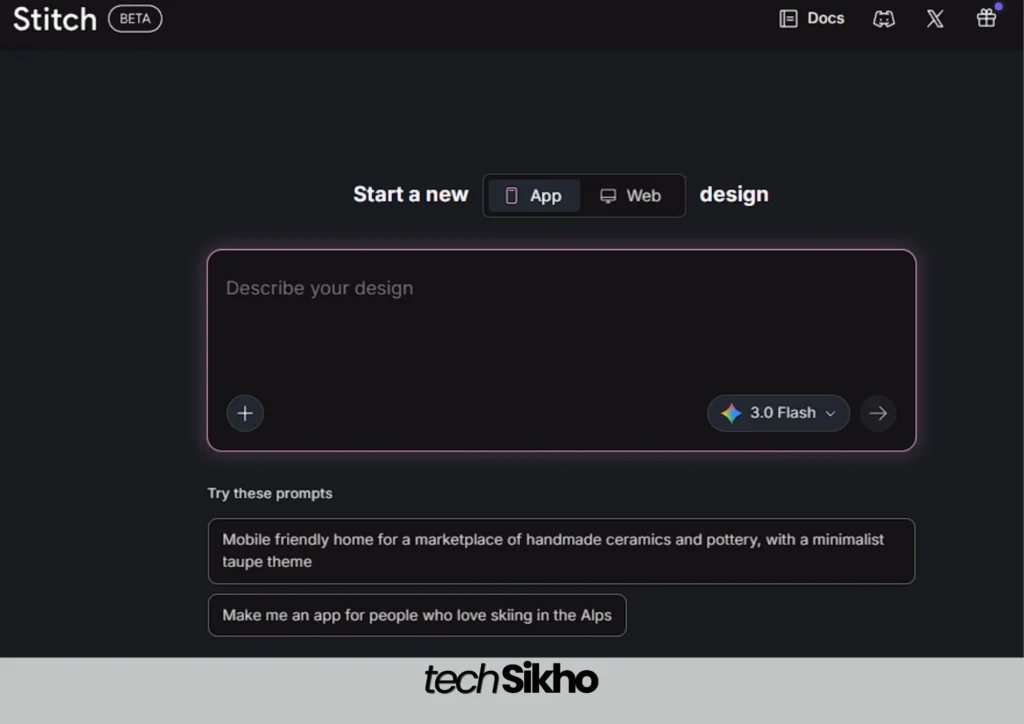
Go to the official website stitch.withgoogle.com. To access, you must have a personal Google Account and be over 18 years old. Once logged in, you’ll see a clean, dark-themed canvas that says, “Start a new design.”
Step 2: Choose your format and context.
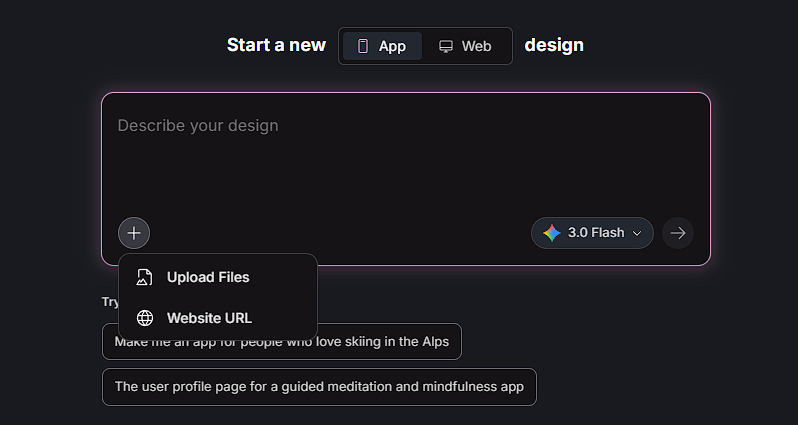
Before typing anything, look at the top center of the screen and select the App or Web button. Then, click the + icon in the prompt box. If you have a style in mind, press Upload Files to attach a sketch, or select Website URL to paste a link to a website as a reference.
Step 3: Write a Detailed Prompt
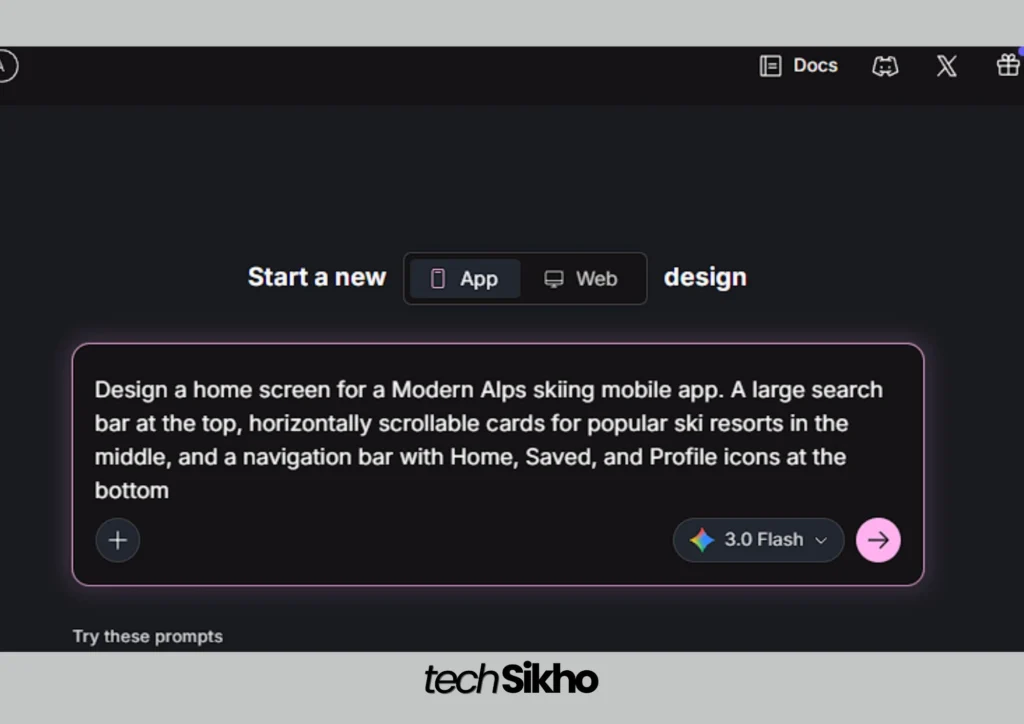
The AI won’t produce accurate results without proper instructions. Clearly describe the screen’s components, layout, and purpose.
Example:
- Weak Prompt: “Create an app for skiing.”
- Expert Prompt: “Design a home screen for a Modern Alps skiing mobile app. A large search bar at the top, horizontally scrollable cards for popular ski resorts in the middle, and a navigation bar with Home, Saved, and Profile icons at the bottom.”
Select your preferred model (e.g., 3.0 Flash) and press the arrow to generate.
Step 4: Refine and Edit
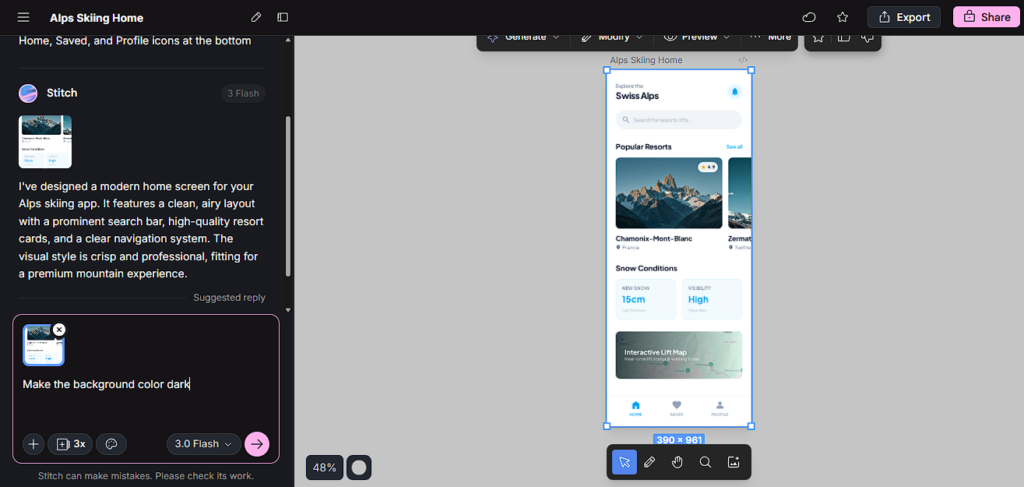
The AI will create the layout in a few seconds. But it doesn’t have to be 100% perfect the first time. First, select the screen you want to modify and then use the chat box next to Design and give commands, like “Make the background color dark blue” or “Make the buttons rounded.”
Step 5: Export Your Work
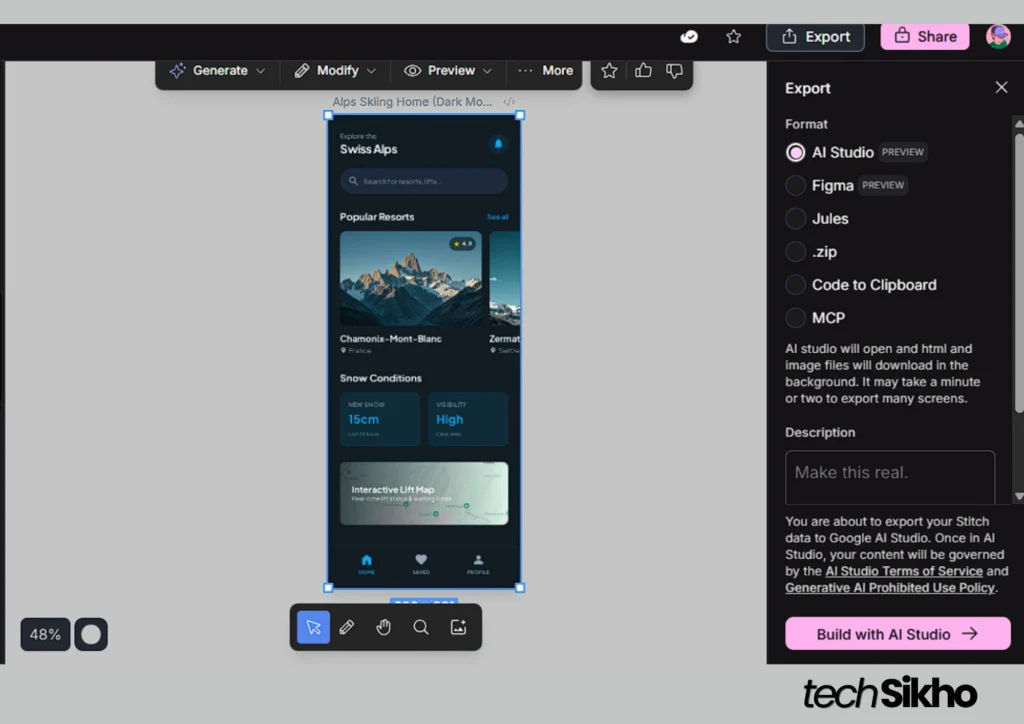
When the layout looks perfect, find the Export button in the top right corner.
- If you’re a designer, select Figma (PREVIEW) to move editable layers directly to Figma.
- If you’re a web developer, select AI Studio (PREVIEW) and type “Make this real” to package the HTML and images. Or select Code to Clipboard to simply copy the raw code.
Google Stitch AI Pricing: How Much Does It Cost?
For now, it’s pretty easy to figure out its price: Google Stitch AI is 100% free to use.
Since this platform is officially an experimental beta developed by Google Labs, there are no monthly subscription fees, tiered plans, or premium paywalls yet. Anyone 18+ can log in with their personal Google account and instantly generate UI designs.
The best part is that Google clearly states in its Terms of Service that it makes no copyright or ownership claim over the designs or code you create. This simply means you can use these free designs for strictly personal projects or commercially for your clients. Yes, keep in mind that a paid version may launch when the tool comes out of beta, but for now, it’s completely free to experience.
Expert Perspective: Where does Google Stitch AI fail?
As a UI/UX strategist, I believe it’s important to understand both the pros and cons of any tool. So, here are the 3 biggest limitations of this tool that you should be aware of:
- Lack of Backend Logic: When you use “Code to Clipboard” or “.zip” export, you only get a front-end visual skin (static HTML and CSS). If you press the “Login” button, no action will occur. You’ll need developer help to set up a real backend database (like Firebase or SQL Server).
- Missing Animations: Fluid animations are crucial for a good user experience—like a card flipping smoothly or a drop-down menu sliding smoothly. Stitch AI creates static templates well, but it still struggles with generating complex micro-animations from basic text commands.
- Building the Entire App at Once: Google Stitch AI is great at creating a single-screen layout. But if you think you’ll create an entire 15-screen user flow (from Sign Up to Checkout) in a single prompt, the AI automatically gets confused. Now you’ll have to generate each screen one by one.
Google Stitch AI Alternatives
The AI design market is growing rapidly daily. If you want to compare how it compares to its competitors, check out this simplified table:
| Main Focus / Feature | Google Stitch AI | Uizard | Banani / Flowstep |
| Generative Model | Gemini (3 Flash, 3 Pro, Nano Banana) | Custom AI Matrix | Open API wrappers (Claude, etc.) |
| Best Utility For | Fast HTML layout rendering, direct Figma layer exports | Paper wireframes to digital app screens | Multi-screen React JS generation |
| Supported Inputs | Text, images/sketches, built-in website URLs | Basic image uploads, simple text prompts | Deep text prompts and Figma links |
| Technical Export | AI Studio, Figma, Jules, .zip files, clipboard | Image outputs, very basic HTML | Advanced component-based React code |
Frequently Asked Questions (FAQs)
Is Google Stitch AI free?
Yes. Google Stitch AI is currently available for free through Google Labs. You can sign in with your Google account and start generating UI designs without paying. While some tools may introduce usage limits or paid plans over time, at present you can use Stitch AI’s core features (text prompts, sketch uploads, and UI output) at no cost.
What does Stitch AI do?
Stitch AI is an AI-powered UI design tool from Google that helps you turn your ideas into real user interface layouts. You describe what you want using simple text or upload a sketch, and Stitch AI generates clean and usable UI screens for mobile or web. It can interpret prompts, create layouts, and help you refine the design—making it easier for beginners and non-designers to prototype interfaces quickly without needing advanced design skills.
How to use Google Stitch?
To use Google Stitch, visit stitch.withgoogle.com and sign in with your Google account. Start a new project, type a clear description of the UI screen you want or upload a sketch, and let the AI generate the layout. You can refine the design by adding more instructions and then export or download the final result for further use.
Can beginners use Google Stitch AI?
Yes, beginners can easily use Google Stitch AI. The tool is designed to work with simple text prompts and basic sketches, so you don’t need coding knowledge or advanced design skills. Just describe the screen you want, and the AI generates a ready-to-use interface that you can refine and export.
Conclusion
If you’re starting to get bored designing by manually placing grids, learning Google Stitch AI will keep you focused. While it won’t completely block or replace human developers or designers just yet, it’s certainly exponentially enhancing the initial ideation, mockup drafts, and basic CSS structuring process.
Features like the Top App/Web toggle, the newly integrated Thinking with 3 Pro engine, and the flawless Figma pipeline make the tool genuinely unique. Since it’s completely free and in beta testing, test its prompt engineering today and easily improve your future designing speed.
Open Google Stitch AI today, test some practical prompts, and experience the speed of your design workflow for yourself. If you have already used it, then comment below and tell us how your experience was and which feature you found most useful.
Disclaimer
This article is for informational and educational purposes only. The information provided about Google Stitch AI is based on publicly available sources and the official Stitch website at the time of writing. Features, pricing, availability, and functionality may change as the product evolves, especially since it is currently in a beta or experimental phase. We are not affiliated with, endorsed by, or officially connected to Google or the Stitch product team. Readers should verify details directly from the official website before making business or technical decisions based on this content.
Also Read:
- Sam Altman Net Worth 2026: Age, Education & Best AI Coding Advice
- 8 Best AI Tools for Coding in 2026 | Beginner to Pro Guide
- I Tested Google Flow AI for 7 Days | Here’s My Honest Review 2026
- Aravind Srinivas Net Worth 2026: Success Story of India’s Youngest AI Billionaire
- Can the “Indus” APP Really Replace ChatGPT for Indians? My Honest Experience with Sarvam AI
- The Complete ChatGPT Photo Editing Prompts That Will Instantly Upgrade Your Photos In 2026