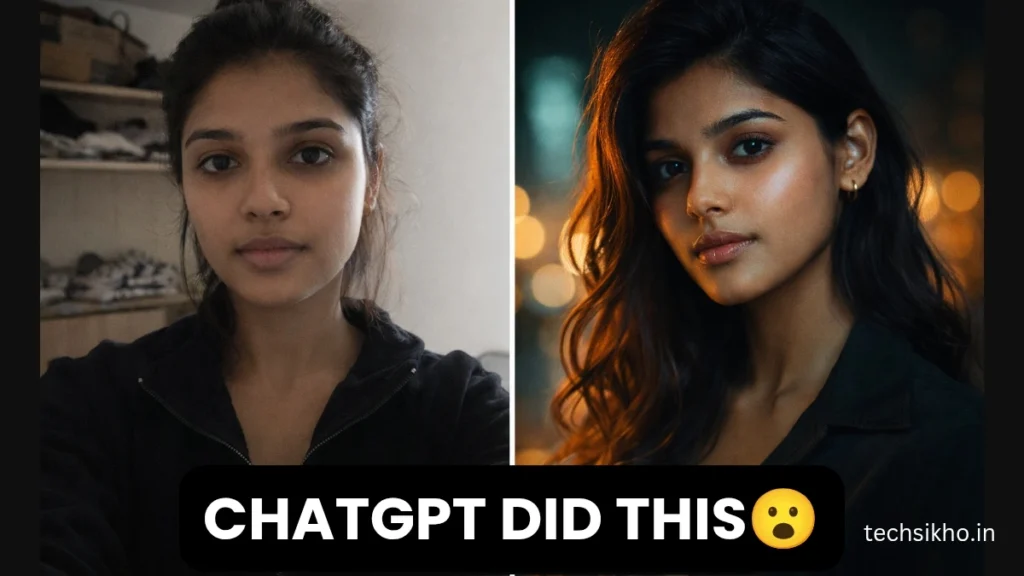
Last week, a 19-year-old college student posted a portrait on Reddit.
Comments exploded. “Which photographer shot this?” “What camera did you use?” “Is this AI?”
Her answer? She uploaded a basic selfie to ChatGPT and typed eight words.
No Photoshop. No Lightroom. No design skills. Just a well-written ChatGPT photo editing prompt and a result that looked like a professional studio produced it. That post got 47,000 upvotes in 24 hours.
I have been testing ChatGPT photo editing prompts for months now, and the results still surprise me sometimes. Every single day, people are using these prompts to create cinematic portraits, viral Instagram edits, branded content, and professional headshots without touching a single paid software tool. The results are real. The tool is free. And most people still have no idea this is possible.
In this article i will gives you 50 ready-to-copy ChatGPT photo editing prompts organised by category: trending styles, free edits, text overlays, girl portraits, and boy portraits. After every section, I will share exactly what I personally do to push those prompts further and get results that look genuinely different from what everyone else is producing.
What Makes a ChatGPT Photo Editing Prompt Actually Work
Most people paste a prompt, get a mediocre result, and blame the tool. In my experience, the tool is almost never the problem.
ChatGPT photo editing prompts respond to three core elements: a specific lighting description, a named visual style, and a clear mood instruction. When all three appear in your prompt, the output quality jumps significantly. When your prompt just says “make this look nice,” the model guesses, and from what I have seen, that guess is always generic and uninspired.
Every prompt in this guide includes at least two of those three elements. That is the structural difference between the prompts here and the vague examples you find in most other articles about ChatGPT photo editing prompts. Keep that framework in mind as you read because it will help you customise any prompt in this list for your own specific photos.
Trending ChatGPT photo editing prompts
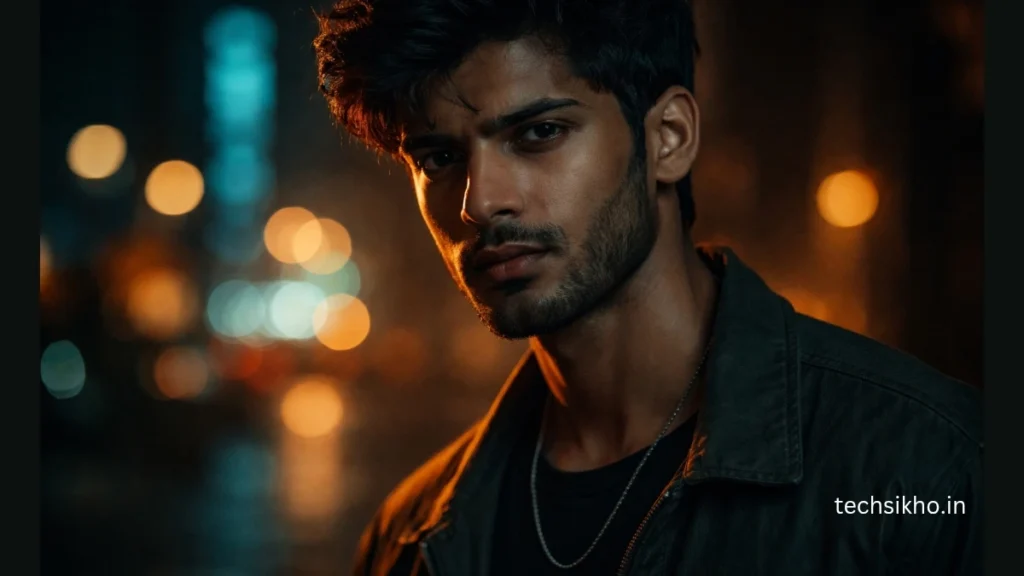
Viral ChatGPT photo Editing prompts are the edits dominating social media in 2026. Studio Ghibli portraits, dark academia aesthetics, cyberpunk edits, and cinematic colour grades are flooding Instagram, Pinterest, and X right now.
I personally tested all ten of these trending styles on the same portrait photo to compare outputs. The cinematic teal-orange grade and the Bollywood editorial consistently gave me the most share-worthy results. But honestly, the Studio Ghibli one made me stop and stare for a full minute the first time I saw it come back.
1. Transform this photo into a cinematic 4K movie still with dramatic
side lighting, deep shadows, and a teal and orange colour grade.

2. Edit this image to look like a Studio Ghibli animation frame.
Soft watercolour textures, warm lighting, and hand-painted
sky details.

3. Apply a dark academia aesthetic. Muted tones, candlelight warmth,
dusty browns, and a vintage film grain overlay.

4. Convert this into a neon cyberpunk edit. Deep black background,
glowing pink and blue neon light falling across the face,
sharp futuristic feel.

5. Make this photo look like a Wes Anderson movie frame. Perfectly
centred composition, pastel pink and yellow palette,
symmetrical and whimsical.

6. Apply a Y2K retro aesthetic. Warm oversaturated colours, slight
VHS grain, chromatic aberration on the edges,
early 2000s film look.

7. Transform this into a luxury brand campaign shot. Soft warm tones,
naturally glowing skin, blurred background,
magazine-quality finish.

8. Edit this photo to look like a shot from a Netflix thriller.
Moody blue-grey colour grade, high contrast, sharp subject,
dramatic blurred background.

9. Apply a golden hour cinematic look. Warm amber tones, lens flare
entering from the left, soft bokeh on the background.

10. Convert this into a Bollywood editorial portrait. Vibrant refined
colours, dramatic eye lighting, luxury feel,
blurred architectural background.
Tip to make these trending prompts even better:
The mistake I made repeatedly when I first started using trending ChatGPT photo editing prompts was copying the aesthetic label without specifying the emotion behind it. The day I started adding one emotional descriptor to every style prompt, my outputs jumped in quality immediately.
Instead of “dark academia aesthetic,” I now write “dark academia aesthetic with a melancholic, introspective mood.” That one addition gives ChatGPT a direction for shadow depth, colour temperature, and overall tone that a style label alone cannot communicate.
I also started adding camera references to every trending prompt. “Shot on a Canon 5D with a 50mm lens” or “medium format film look” consistently pushes the output toward photographic realism rather than a digital illustration feel. Try it on the cinematic and Bollywood prompts above and compare the difference yourself.
Quick Fixes That Cost You Nothing
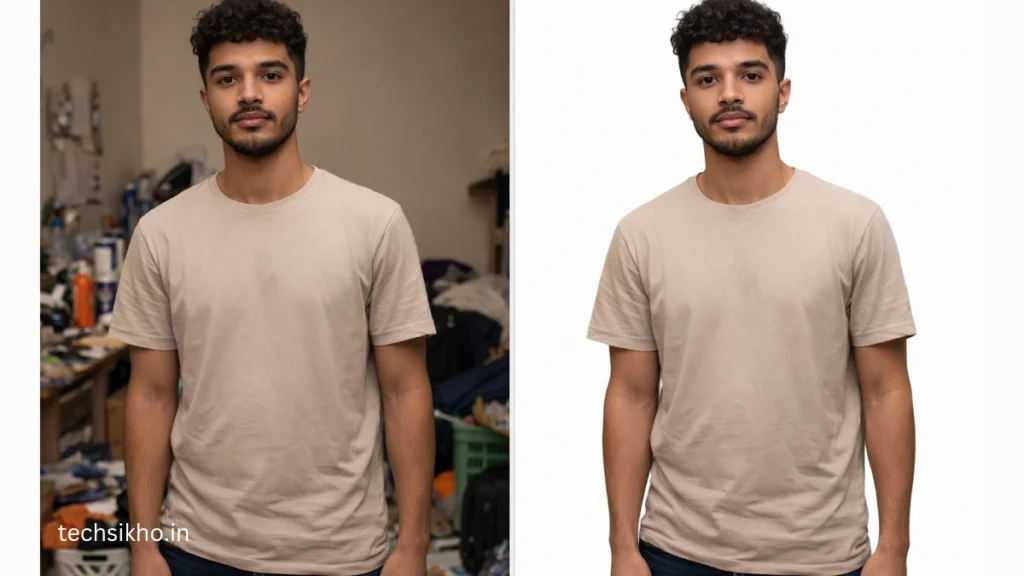
These free ChatGPT photo editing prompts solve the most common photo problems: bad backgrounds, poor lighting, uneven skin, and wrong crop. You do not need a ChatGPT Plus subscription for any of these. Every prompt in this section works on the standard free tier.
I remember spending 25 minutes trying to remove a background in Photoshop as a beginner. I gave up and left the white patches in. Now I paste one of these free ChatGPT photo editing prompts and the same result comes back in under 30 seconds. That shift still feels slightly unreal to me, and I use this tool every week.
1. Remove the background from this photo and replace it with a
clean solid white. Keep the subject edges sharp and natural.

2. Fix the exposure in this photo. It looks underexposed. Brighten
it naturally without washing out the highlights.

3. Correct the white balance. The photo looks too warm and yellow.
Make the tones neutral and natural.

4. Smooth the skin in this portrait naturally. Keep the pores and
texture realistic. Do not over-retouch.

5. Sharpen the subject and add a slight background blur to create
a shallow depth-of-field effect.

6. Remove the person standing in the background. Fill the space
naturally with the surrounding environment.

7. Increase the contrast and clarity of this landscape photo to
make the colours pop without looking oversaturated.

8. Add a soft vignette around the edges to draw attention toward
the centre of the frame.

9. Convert this photo into a clean high-contrast black and white
image. Preserve the shadow and highlight detail.

10. Crop this photo to a 1:1 square ratio optimised for Instagram.
Keep the main subject centred in the frame.
Tip to make these free prompts even better:
Something I discovered after testing these free ChatGPT photo editing prompts extensively is that combining two instructions in one prompt almost always gives a faster, more polished result than running them separately.
For example, instead of doing background removal and then skin retouching as two separate prompts, I now write: “Remove the background, replace it with clean white, smooth the skin naturally, and brighten the face slightly.” ChatGPT handles multi-instruction prompts better than most people expect, and chaining simple edits saves you multiple rounds of back-and-forth.
One more thing I always add to skin retouching prompts now: “Keep the result looking like a real photograph, not a digital painting.” Without that line, I found the model over-smoothed to the point where portraits lost their human quality entirely. That single sentence changed my retouching results completely.
Adding Text and Typography to Your Photos
ChatGPT photo editing prompts text instructions are one of the most searched and least understood categories in this space right now. These prompts let you add quote graphics, watermarks, YouTube thumbnails, price badges, and branded typography directly onto your image without opening Canva or any design tool.
When I first tried ChatGPT photo editing prompts text overlays, I honestly did not expect much. My first attempt came back with the text placed awkwardly and the font looking slightly off. But once I understood how to write the typography instruction properly, my second attempt looked like something a graphic designer produced in 20 minutes.
1. Add a semi-transparent dark overlay and place bold white text
"Work Hard In Silence" centred in the middle.
Clean sans-serif font.

2. Design a YouTube thumbnail from this photo. Add bold red text
on the left reading "I Tried It" with a white drop shadow.
High contrast and punchy.

3. Add a subtle watermark at the bottom centre reading
"© TechSikho.in" in small semi-transparent white text.

4. Create a motivational Instagram post. Add a soft dark gradient
at the bottom and place the text "Your Journey Is Your Story"
in elegant white script font.

5. Add "Est. 2024" in a minimal serif font at the bottom right
corner. Make it subtle and blend naturally with the image tone.

6. Design a book cover from this portrait. Dark gradient at the top,
title "The Silent Path" in large serif font,
author name below in small caps.

7. Add a breaking news style banner at the bottom. Dark red
background, white uppercase bold text reading
"India Launches Its Own AI."

8. Place a "BEFORE / AFTER" label split down the centre of this
image. Clean white text, minimal font,
suitable for a comparison post.

9. Add a price badge in the corner reading "₹999 Only." Red
circular badge, white bold text, clean e-commerce style.

10. Add a location tag in the top left corner reading
"New Delhi, India" in a small minimalist font.
Keep it subtle and tasteful.
Tip to make these text prompts even better:
The biggest issue I personally ran into with ChatGPT photo editing prompts text edits was font accuracy. ChatGPT would sometimes choose a font that technically matched my description but completely clashed with the mood of the image.
My fix was to start specifying the emotional weight of the font rather than just the style. Instead of “bold white font,” I now write “bold white font that feels commanding and urgent, similar to a sports brand headline.” That emotional framing gives the model something concrete to match the font choice against.
I also started specifying text size relative to the viewing context. “Large enough to read clearly at YouTube thumbnail size when viewed on mobile” is far more useful than just “large text.” It tells ChatGPT the actual environment your image is designed for, and the output reflects that immediately.
ChatGPT Photo Editing Prompts For Girls
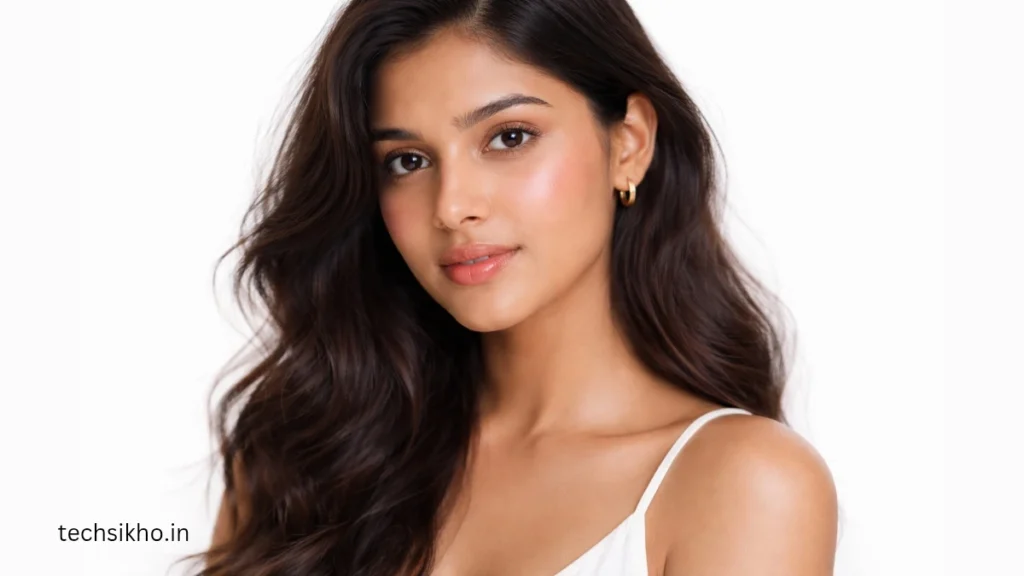
These ChatGPT photo editing prompts for girl portraits cover every mood: soft pastel dreamy edits, dramatic editorial looks, professional headshots, and fantasy portraits. Each prompt targets a specific visual style so you know exactly what result to expect before you paste it.
In my testing of ChatGPT photo editing prompts for girl portraits, the K-beauty and bridal prompts consistently produced the most stunning outputs on the first attempt. The dark fantasy prompt took me two rounds of refinement to get right, but when it landed, the result genuinely looked like a fantasy magazine cover.
1. Edit this portrait into a soft dreamy aesthetic. Pastel pink tones,
glowing skin, soft bokeh background,
rose gold light falling on the hair.

2. Apply a K-beauty inspired edit. Dewy glowing skin, soft pink
cheeks, bright natural lighting, clean white background.

3. Transform this into a high-fashion Vogue India editorial.
Cool blue-grey tones, dramatic shadow on one side of the face,
sharp and elegant finish.

4. Apply a cottagecore aesthetic. Warm golden tones, soft natural
light, wildflower elements around the subject,
earthy background with gentle bloom.

5. Edit this into a romantic Parisian photography shoot. Warm golden
tones, blurred Eiffel Tower background, natural smile preserved,
film grain overlay.

6. Transform this photo into a bridal photography edit. Soft white
tones, glowing warm skin, bokeh fairy lights in the background,
timeless and elegant feel.

7. Apply a dark fantasy aesthetic. Deep jewel tones, dramatic shadows,
galaxy sky background, ethereal glowing light
falling on the subject.

8. Convert this into an anime illustration style portrait. Large
expressive eyes, smooth skin, vibrant hair colour,
detailed anime art style background.

9. Edit this selfie into a professional LinkedIn headshot. Clean
neutral background, natural skin retouching,
bright and confident lighting.

10. Apply a retro 90s fashion editorial look. Warm oversaturated
tones, bold makeup enhanced, grain overlay,
fashion magazine composition.
Tip to make these girl portrait prompts even better:
The single detail I was skipping that most improved my ChatGPT photo editing prompts for girl portrait results was a specific hair treatment instruction. Hair is where AI edits most commonly produce unnatural outputs. Strands merge together, flyaways disappear completely, or the texture flattens into something that looks painted rather than photographed.
I now add this line to every portrait prompt I write: “Keep the hair texture natural and detailed. Do not over-smooth individual strands or merge flyaways.” That instruction alone improved my portrait results more than any other single change I made.
For skin, I also learned to specify my preservation priority clearly. My current go-to addition is: “Smooth the skin but keep freckles, moles, and natural features intact.” This prevents the model from erasing defining characteristics that make a portrait feel real and personal rather than like a stock image.
ChatGPT Photo Editing Prompts For Boys
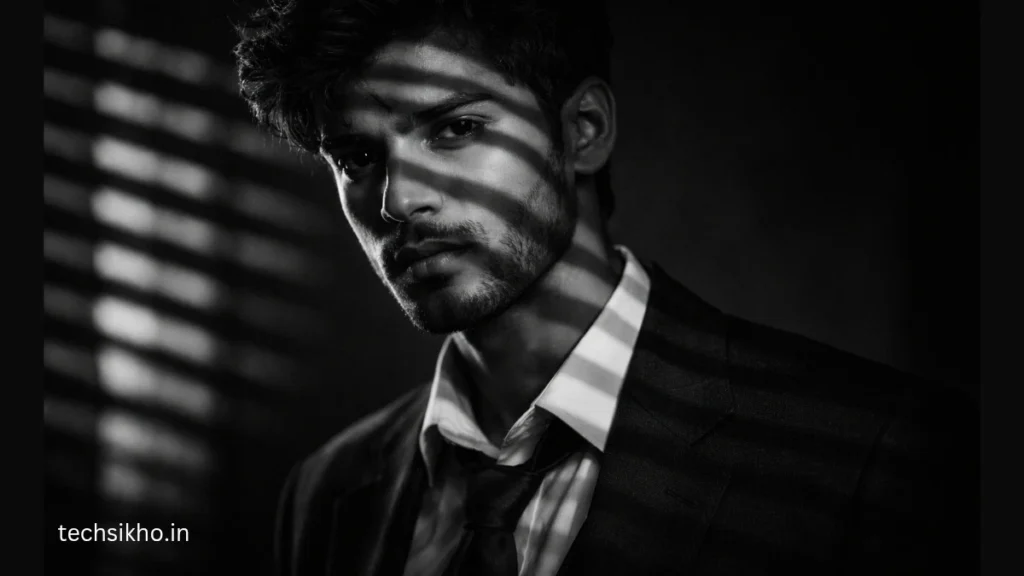
Strong contrast, dramatic lighting, and cinematic moods define the best ChatGPT photo editing prompts for boy portraits. Whether you need a corporate headshot, a dark moody edit, a sports campaign look, or a creative fantasy result, these ChatGPT photo editing prompts for boy photographs cover every major masculine visual style used in professional photography in 2026.
From my personal testing, the film noir and GQ magazine prompts gave me the most dramatically impressive first-attempt results. The fantasy warrior prompt needed an extra instruction about background scale to look right, and I will cover that in the tip below.
1. Edit this portrait into a cinematic action shot. Dark dramatic
lighting, deep shadows on one side, high contrast,
moody blue background.

2. Apply a GQ magazine cover look. Strong jaw highlighted with
dramatic side lighting, dark tones, clean studio background,
luxury brand feel.

3. Transform this into a film noir portrait. Pure black and white,
extreme contrast, venetian blind shadow pattern across the face,
1940s detective atmosphere.

4. Convert this into a professional corporate headshot. Clean grey
background, neutral colour grade, sharp confident lighting.

5. Apply a street photography aesthetic. Gritty black and white,
high contrast, natural urban background preserved,
raw and authentic feel.

6. Transform this into a fantasy warrior character edit. Storm cloud
background, armour texture overlay on the clothing,
epic cinematic lighting from below.

7. Edit this outdoor photo into a dramatic mountain expedition shot.
Cool blue tones, misty mountain background added,
rugged adventurer feel, sharp subject.

8. Apply a hip-hop music video aesthetic. Deep saturated colours,
moody purple and blue lighting, urban background,
bold and confident feel.

9. Transform this into a sports brand campaign image. Dynamic
lighting, warm energetic tones, blurred stadium background,
athlete confidence preserved in the expression.

10. Apply a travel content creator look. Golden hour tones, exotic
location background, casual confident pose preserved,
Instagram-ready finish.
Tip to make these boy portrait prompts even better:
The most effective single upgrade I found for ChatGPT photo editing prompts for boy portraits was adding a jawline and facial structure instruction. I now include “enhance the jaw definition with slight shadow contouring” or “add subtle shadow under the cheekbones for a stronger facial structure” in every male portrait prompt I write. This one addition takes a decent portrait to something that looks intentionally and professionally lit.
For the fantasy warrior and action prompts specifically, I learned to add a scale instruction: “Make the background elements feel massive and epic in scale compared to the subject.” Without this, the model sometimes produces a background that feels flat and small rather than grand and cinematic. That scale instruction is the difference between a good fantasy edit and one that genuinely looks like a movie poster.
5 Habits That Make Every Single Prompt Better
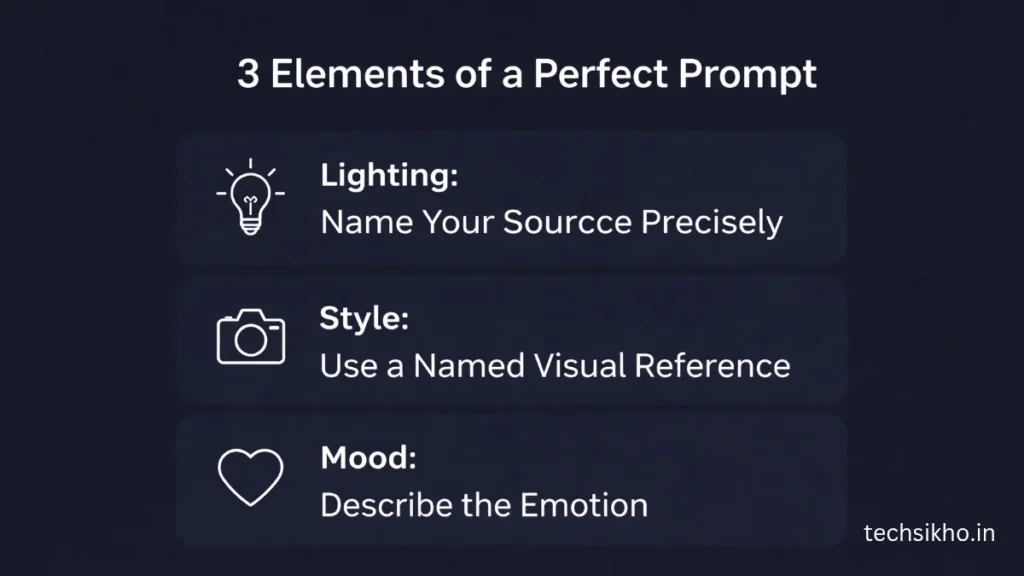
After testing hundreds of ChatGPT photo editing prompts across every category in this guide, I can tell you with complete confidence that the people getting consistent, stunning results are not using a better tool or a paid subscription. They are writing better instructions. Here is exactly what I do differently now compared to when I started.
- I name my lighting source with full precision. Every strong ChatGPT photo editing prompt I write now tells the model exactly where the light comes from and what quality it carries. “Soft diffused light from the upper left casting a gentle shadow on the right side of the face” produces dramatically better results than “good lighting.” In my experience, the lighting instruction is the single most powerful element in any photo editing prompt. Get this right and everything else improves with it.
- I use visual references the model already recognises deeply. Phrases like “shot on Kodak Portra 400 film,” “Lightroom moody preset style,” or “Wes Anderson colour palette” give ChatGPT an established visual language it can draw from with real precision. Abstract words like “beautiful” or “professional” give it almost nothing concrete to execute against. I stopped using vague adjectives in my prompts completely.
- I always tell it what to keep, not just what to change. This was my biggest early mistake. I would describe everything I wanted changed and forget to mention what I wanted preserved. Now every single prompt I write includes a preservation line. “Keep the facial expression exactly as it is” or “preserve the background architecture without any changes” prevents the model from altering things I actually liked in the original. This single habit eliminated about 60 percent of my failed outputs.
- I treat my background description with the same care as my subject. For the first few months I was using ChatGPT photo editing prompts, I would write detailed instructions for the person and then write “nice background” for the environment. That imbalance always showed in my results. Now I treat the background as a deliberate creative decision that deserves its own descriptive sentence in every prompt I write.
- I treat my first output as a draft and iterate once. The best results I have ever gotten from ChatGPT photo editing prompts came from the second or third attempt, not the first. After my first output, I respond with one specific correction: “The skin looks over-smoothed, bring back natural texture” or “The background is too dark, lighten it by thirty percent.” That single feedback loop consistently produces a dramatically better second output compared to starting over with a completely new prompt.
Frequently Asked Questions (FAQs)
How to prompt ChatGPT for photo editing?
Open ChatGPT, click the image upload icon, and attach your photo. Then type exactly what you want: mention the lighting, the style, and the mood. For example: “Edit this portrait with golden hour lighting, soft bokeh background, and a warm cinematic colour grade.” The more specific you are, the better the result comes back.
What are the best ChatGPT photo prompts?
The prompts that consistently work best are the ones that name a real visual style. Try “cinematic teal-orange colour grade,” “Studio Ghibli animation frame,” “film noir black and white with venetian blind shadows,” or “K-beauty dewy skin edit.” These give ChatGPT a clear direction instead of a vague instruction like “make it look good.”
What is the viral picture prompt for ChatGPT?
The Studio Ghibli prompt went the most viral in 2025. The exact style that worked: “Transform this photo into a Studio Ghibli animation frame with soft watercolour textures, warm lighting, and hand-painted sky details.” Millions of people used this on their portraits and the results flooded every social platform within days.
Can I give ChatGPT a photo to edit?
Yes, absolutely. You need ChatGPT with image support, which is available on both the free and Plus plans. Just click the attachment icon in the chat box, upload your photo, type your editing instruction, and hit send. ChatGPT reads your photo and returns an edited version based on exactly what you described.
Conclusion
I have spent months inside this tool testing what works and what does not. The honest conclusion I keep coming back to is this: the difference between an average AI edit and a genuinely impressive one is never the tool. It is always the specificity of the instruction. Lighting, mood, visual reference, preservation detail, background description. Build those five elements into your ChatGPT photo editing prompts and your results improve immediately and consistently, every single time.
Pick one prompt from this list that fits your next photo. Paste it. See what comes back. Then use the improvement tip from that section to push your result one step further. That habit of prompting, evaluating, and refining is what separates the people getting viral results from the people getting generic outputs and giving up.
The prompts are here. The tool is free. I genuinely cannot wait to see what you create with them. Drop your results in the comments because I read every single one.
Disclaimer: This article is written for informational and educational purposes only. All prompts shared in this guide are based on personal testing and real experience with ChatGPT’s image editing feature. Results may vary depending on your photo quality, ChatGPT version, and how you write your prompt. We do not guarantee that every prompt will produce the same output for every user.
TechSikho.in is not affiliated with or sponsored by OpenAI or ChatGPT in any way. All opinions shared here are independent and honest. AI image editing tools update frequently. Features, limits, and availability may change over time. Always check chat.openai.com for the most current information.
Any images generated using these prompts belong to the user who created them. Please follow OpenAI’s usage policies before publishing AI-generated images commercially.
Also Read:
- Sam Altman Net Worth 2026: Age, Education & Best AI Coding Advice
- 8 Best AI Tools for Coding in 2026 | Beginner to Pro Guide
- I Tested Google Flow AI for 7 Days | Here’s My Honest Review 2026
- Aravind Srinivas Net Worth 2026: Success Story of India’s Youngest AI Billionaire
- Can the “Indus” APP Really Replace ChatGPT for Indians? My Honest Experience with Sarvam AI
- MacBook Neo Review 2026: Apple’s Most Affordable MacBook Ever, But Is It Worth Your Money?
- ChatGPT vs Gemini: Which is Better (2026)? My Honest Comparison After Using Both