

Hii Guys,
Do you want to make cinematic videos without using extensive editing and software? Do you think AI can create professional-looking videos?
Driven by curiosity, I thoroughly tested Google Flow AI for 7 days, trying out different prompts, using features like Scene Builder, and creating real cinematic clips.
In this review, I’ll explain in simple terms what actually works, where I ran into issues, the pricing reality, and whether this technology is truly worth it for content creators in 2026, so you can make your own decision.
So, Let’s get started.
What is Google Flow AI?
According to my study, Google Flow AI is a new AI filmmaking tool that was introduced during the Google I/O event in May 2025. When I first looked at it, I discovered it wasn’t a basic video generator.
Google Flow is a comprehensive AI-powered video creation platform that allows you to:
- Create great videos with text prompts.
- Convert photos to realistic videos.
- Stitch many scenes together
- Automatically generate audio and dialogue.
The most interesting feature I discovered is that it combines Google’s most powerful AI models: Veo 3.1 (for video), Imagen 4 (for photos), and Gemini (for natural language processing).
How Flow AI Works: My Personal Experience.
I’ll be honest, when I first started using Google Flow, I found it confusing. But as I started looking into it, I was impressed. I’ve tested practically almost all of Google Flow’s functions, including:
Text-to-Video generation.
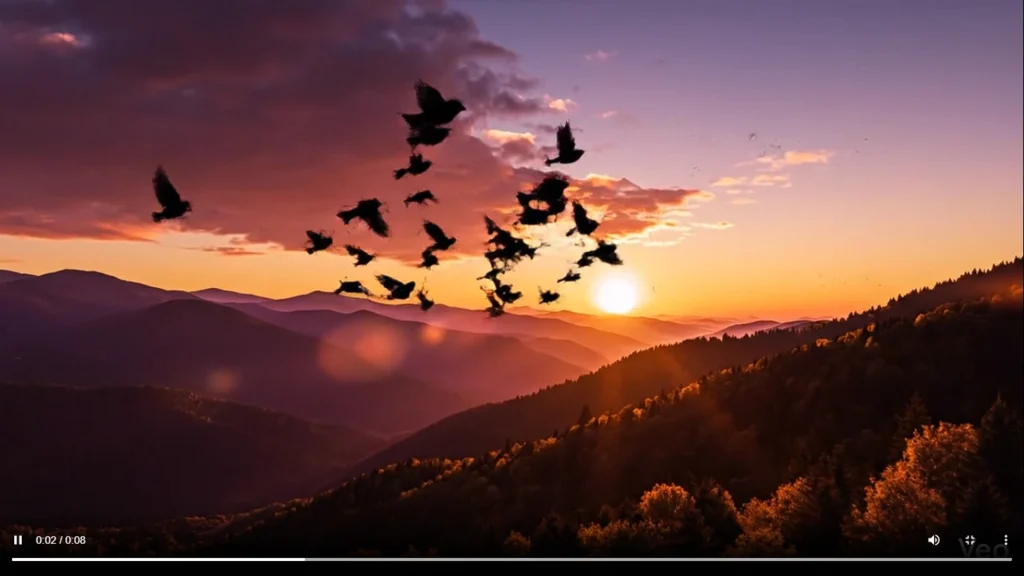
First, I used a simple prompt: “A sunset over mountains with birds flying.” And believe me, the results from that question were extremely cinematic. I was actually surprised by the video’s quality.
Frame-to-Video Feature.
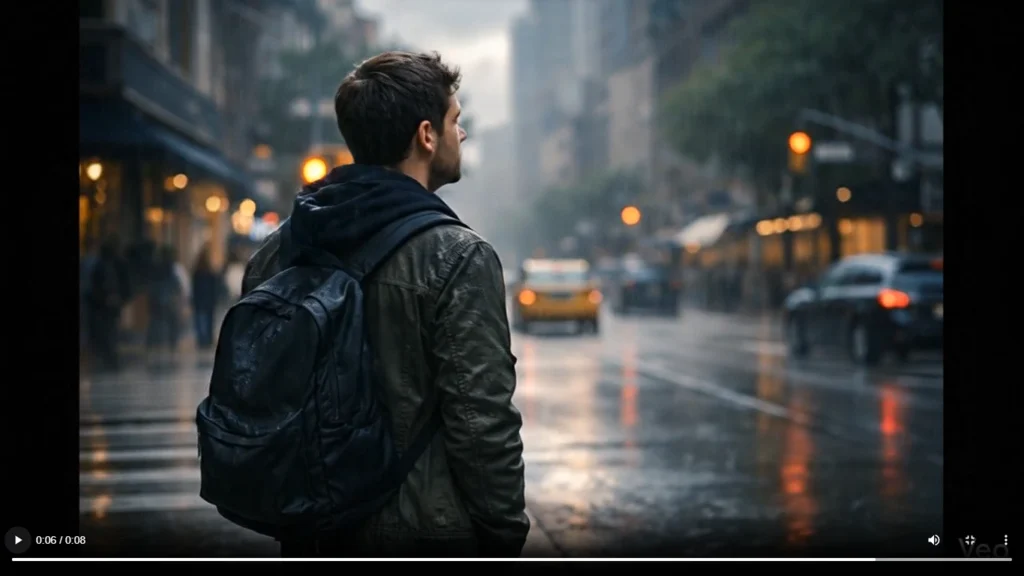
This feature was game-changing for me. This function allows you to upload the start and end frames, and Flow will automatically build the motion in between. I uploaded two images and asked it to add a rain effect, I was shocked by the results!
Here is the prompt:
Start from the first uploaded image.

Camera slowly pushes forward.

Person standing calmly on dry street.

Soft ambient city sound.

Then clouds slowly roll in.

Light wind starts.

Small rain drops begin falling.

Rain gradually becomes heavier.

Street turns wet with reflections.

Person reacts emotionally, slowly looking up at sky.

Smooth cinematic transition into second uploaded image.

Heavy rain pouring.

Dramatic lighting.

Water dripping from clothes.

Camera slowly circles around subject.

Emotional background music builds.

Final shot holds on rainy scene.

Ultra realistic cinematic lighting, smooth transitions, slow motion rain particles, emotional pacing, shallow depth of field, film grain, natural shadows, modern movie look.
Output
Scene Builder Tool.
This is my favorite feature. When I first started using Google Flow AI, I really loved this function. This feature transforms Google Flow into a short film studio, rather than just a video generator.
Let me explain how it works.
Scene Builder is simply Flow’s story control system.
In standard AI tools, you type a prompt, and the AI creates a movie. But using the Scene Builder, you can:
- Create several scenarios,
- compose separate prompts,
- adjust camera angles,
- and reuse characters in subsequent scenes.
Essentially, you become the director and the AI is your cameraman. 😄
I personally like this feature, and you will too if you’re a video content creator that uploads AI videos on social media.
How does the Scene Builder work?
Scene Builder provides a timeline-like layout that allows you to produce extended videos consistently.
Scene Builder allows you to generate videos scene by scene, such as:
- Add Scene 1
- Add Scene 2
- Add Scene 3… Scene 4 As many as you want.
Each scene has its own text box where you can write the prompt for the particular scene.
Example:
Let me show you with an example.
First, understand this:
- You cannot upload photos in Scene Builder.
- We only generate text scenarios.
- Each scene contributes to a larger plot.
To better understand this, try a crime thriller example.
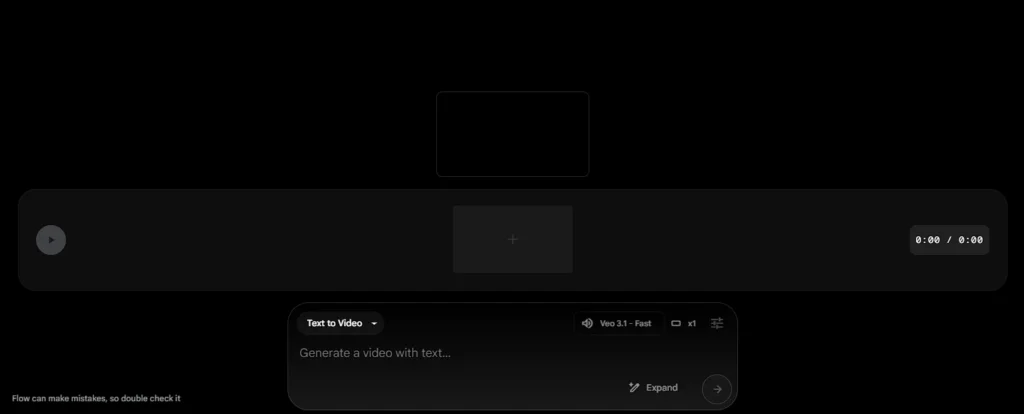
Step 1: Open Scene Builder.
After opening the flow:
- Select “Scene Builder.”
- You will see a timeline-like layout.
- You’ll notice “Scene 1” already there.
We will now design the first scenario. I’ll paste the prompt below so you can copy and try it for yourself.
Scene 1 Prompt:
Dark underground parking garage at night.
Soft rain sound echoing in distance.
Dim yellow ceiling lights reflecting on wet concrete floor.
Camera starts with wide cinematic shot, then slowly pushes forward.

A man stands still in shadow, breathing quietly.
Foreground shows his gloved hand holding a pistol, slightly shaking.
Red and blue police lights softly flicker on walls.

Atmosphere tense and silent.
Background ambient low bass music begins.

Slow camera movement.
No sudden cuts.Output:
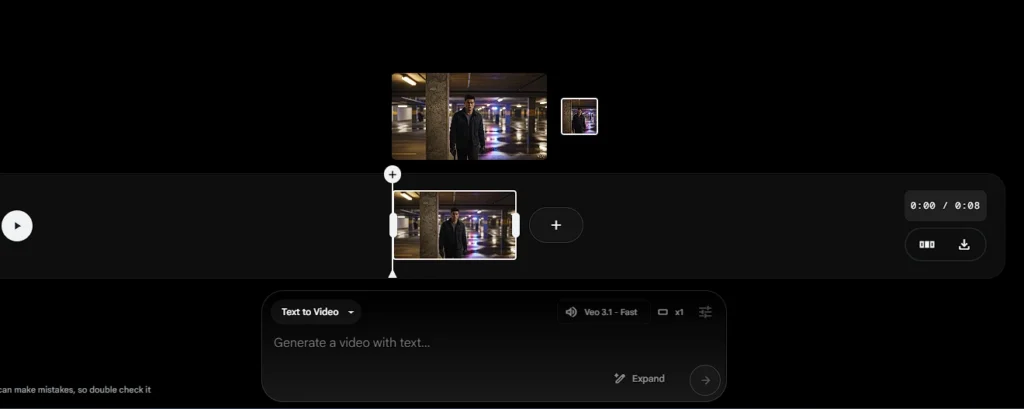
Step 2: Tap “Add Scene”
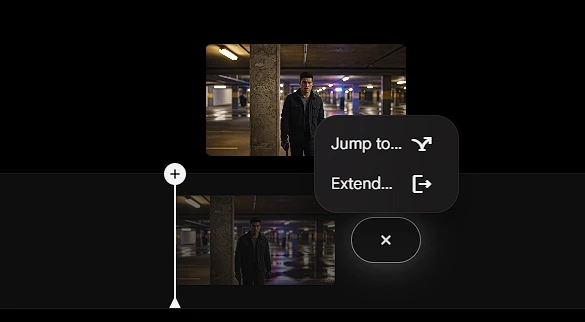
When you click “Add Scene,” you will get two options:
- 1. Jump to: This allows you to jump from one scene to another.
- 2. Expand: This allows you to extend the same scene without cutting.
I am currently using the expand option in my video.
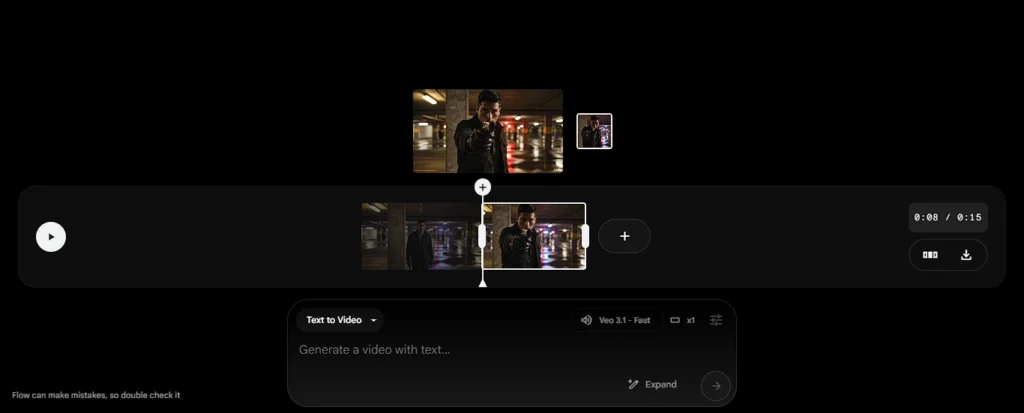
Scene 2 Prompt:
Camera gently circles around the man from side angle.
His breathing becomes heavier.

He slowly lowers the gun.

Metallic sound as weapon slips from his hand and hits the floor in slow motion.

Echo effect.

Camera focuses on his eyes — full of regret.

Music becomes emotional.

Screen softly fades, transitioning into memory.
Output:
Step 3: Then “Add Scene”
We will now add the third scene.
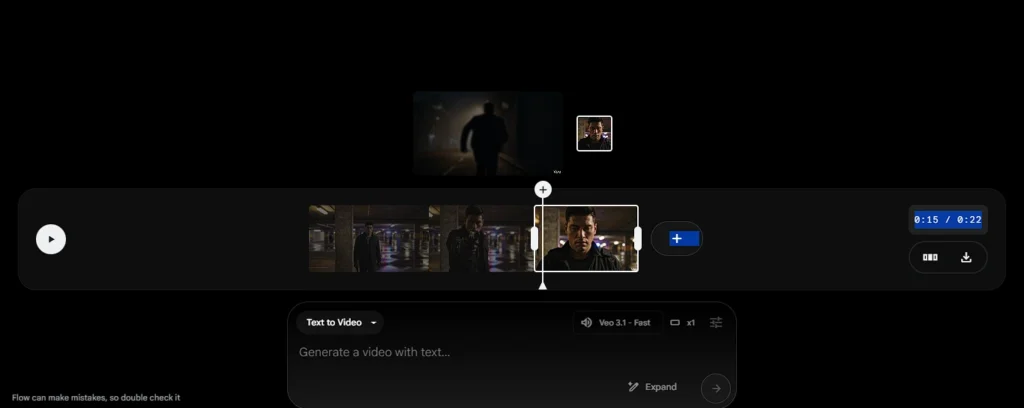
Scene 3 Prompt:
Soft blur transition into flashback.

Empty city street at midnight.
Street lights glowing through light fog.

Footsteps running slowly.

Camera follows behind from low angle.

Shadow of the man stretches across alley wall.

Small drops of blood falling on ground.

Heartbeat sound layered with music.

Everything in slow motion.

Camera gently fades to black.
Output:
Step 4: Add Scene.
We will now add the fourth scene.
Scene 4 Prompt:
Black screen slowly opens into warm sunrise light.

Golden morning near riverside.

Police tape moving softly in breeze.

Detectives standing near patrol car.

Forensic investigator kneeling beside covered body.

Camera slowly cranes upward.

Birds flying across sky.

City skyline appearing in distance.

Soft emotional piano music.
Final Scene: Closing Shot
We will now include the concluding scene.
Final Scene Prompt:
Wide aerial cinematic view of city waking up.

Sunlight flooding buildings.

Text appears slowly:

“Every crime leaves a shadow.”

Fade out.
Output:
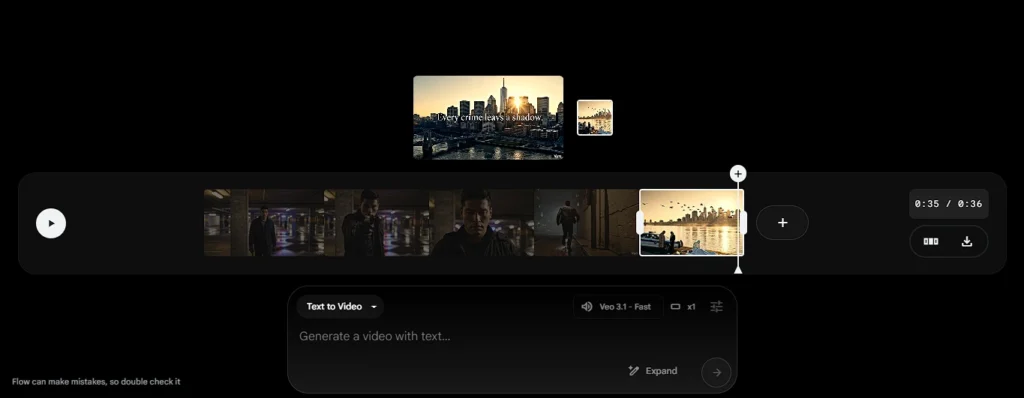
One thing I can tell you from personal experience is that you don’t simply write prompts in the Scene Builder, you also write scenes.
The more specific your scene instructions are, the more cinematic your video will generate.
Key Features of Google Flow AI that I tested.
- Veo 3.1 Integration.
During my tests, the Veo 3.1 model regularly produced high-quality results. This model is especially effective because:
- It understands realistic physics and motion.
- Correctly handles camera motions (pan, tilt, zoom).
- Professionally renders lighting and textures.
- Audio generation.
To be honest, I was surprised that Flow could generate environmental sounds, background music, and even speech.
One drawback I observed was the audio quality, which isn’t professional yet. I hope that it will be better in the future.
- Video Ingredients.
In Google Flow AI, “Ingredients” refers to defining the major aspects of your film in advance.
For example:
- Character (hero’s appearance)
- Location: garage, street, room
- Props: (gun, automobile, chair)
Mood or style
Then, in the Scene Builder, you won’t have to constantly writing details. You simply write the story, and Flow already knows which character, setting, and prop to utilize.
Pros and Cons: My honest opinion
Advantages (What I Did Notice).
- Cinematic Quality: The product appears professional. Lighting, physics, and motion are all realistic.
- Simple to Use: You don’t need much technological expertise. Simple prompts provide the desired results.
- Google Ecosystem Integration: For those who currently use Google services, the experience is seamless.
- Student Discounts: Students can get 12 months of free subscription. (Verification necessary).
Limitations (which I personally faced).
- Credits expire quickly: 1,000 monthly credits may not be enough for heavy usage.
- Inconsistent outcomes: Using the same prompt may yield varying quality outcomes.
- Audio Quality: The Current audio quality lacks professionalism. For professional work, you must edit the audio independently.
Google Flow AI Pricing
This section is important because there may be confusion here. I initially took my time understanding the credit system.
| Plan | Monthly Cost | AI Credits | Best For |
|---|---|---|---|
| Free Trial | ₹0 (1 month) | 100 one-time + 50 daily | Testing purpose |
| AI Pro | $19.99 (~₹1,650) | 1,000/month | Serious creators |
| AI Ultra | $249.99 (~₹20,800) | 25,000/month | Professional studios |
How does credit work?
Based on my experiences:
- A basic video generation costs between 20 and 50 credits.
- Using a quality model consumes more credits.
Important: Depending on your preferences, the Pro plan (1,000 credits) allows you to make 20 or more videos every month.
Google Flow AI vs Other Popular AI Video Tools (Simple Comparison)
There are plenty of AI video tools on the market, but how does Google Flow compare to OpenAI Sora, Runway Gen-3, and Luma Dream Machine? I’ve tried them all, and here’s an honest comparison:
Comparison Table
| Feature | Google Flow AI | OpenAI Sora | Runway Gen-3 | Luma Dream Machine |
| Best For | Professional Storytelling | Viral Social Media Clips | Creative Control | Fast Realistic Motion |
| Consistency | High (Due to Ingredients) | Medium | High | Low/Medium |
| Timeline Editing | Yes (Scene Builder) | No | Limited | No |
| Audio Sync | Automatic (Veo 3.1) | No (Silent) | Manual | Manual |
| Ease of Use | Very Easy (Hinglish Support) | Easy | Complex (Pro Tools) | Medium |
I did this comparison when I used the same prompt (“A man walking in the rain”) on all three tools.
Frequently Asked Questions (FAQs)
Is Google Flow AI free to use?
Initially, you can try Google Flow for free through a limited-time trial. Google often offers a 1-month free trial to new users who sign up for the Google One AI Premium plan. This allows you to test all the “Veo 3” video features without paying anything upfront.
What is the difference between Google Gemini and Google Flow?
Gemini is an AI chatbot that answers questions. Google Flow is a video studio where you can create professional videos and films. Inside Flow, Gemini’s brain works.
How long of a video can be made with this?
A single shot is 8 seconds long, but with the Scene builder tool, you can combine multiple shots to create a longer film or YouTube video.
How does the character always stay the same?
It’s because of its “Ingredients” feature. You can save your character, so they look exactly the same in every new scene.
Final Verdict
After 7 days of using Google Flow AI, I can certainly say that it is a strong tool for professional content creators, particularly those looking to create cinematic short videos or AI films.
Personally, I was impressed by its Scene Builder, dramatic motion, and realistic lighting. Even basic hints can result in professional-looking clips that would usually take hours in editing tools.
Yes, there are limitations. There are some problems with character consistency, the audio quality isn’t yet professional, and the credits run out too soon. So, for beginners expecting “one-click magic,” this tool may be frightening
But if you:
- Create YouTube shorts and reels.
- Are interested in AI storytelling.
- Want to save time when creating cinematic material.
Then Google Flow AI is certainly worth exploring.
My recommendation is straightforward: first, test it with free credits to grasp the procedure, and then upgrade to a paying plan if you find it beneficial.
That’s it for today’s article. I hope you find it helpful. If you’ve already tested this tool, please share your thoughts in the comments section below.
Disclaimer: This review is based on my personal experiences and tests. I used Google Flow AI for seven days, testing its many functionalities, and the opinions mentioned here are based on my actual usage experiences.
I am neither an official Google representative or directly sponsored by Google. Features, pricing, and free trial offers are subject to change in the future, so check the official website before making a final decision.
The goal of this article is simply informative and educational to help readers to understand the tool. Your experience may vary depending on your usage habits, prompts, and creative needs.
Also Read:
- How To Use Google Whisk AI: Transform Your Ideas into Stunning Visuals in Seconds
- 8 Best AI Tools for Coding in 2026 | Beginner to Pro Guide
- Aravind Srinivas Net Worth 2026: Success Story of India’s Youngest AI Billionaire
- How to Use Google Stitch AI: The Smartest Way to Design UI Faster in 2026
- 6 Best Free AI Tool for Stock Market That Actually Work in 2026



[…] Also Check: I Tested Google Flow AI for 7 Days | Here’s My Honest Review 2026 […]